
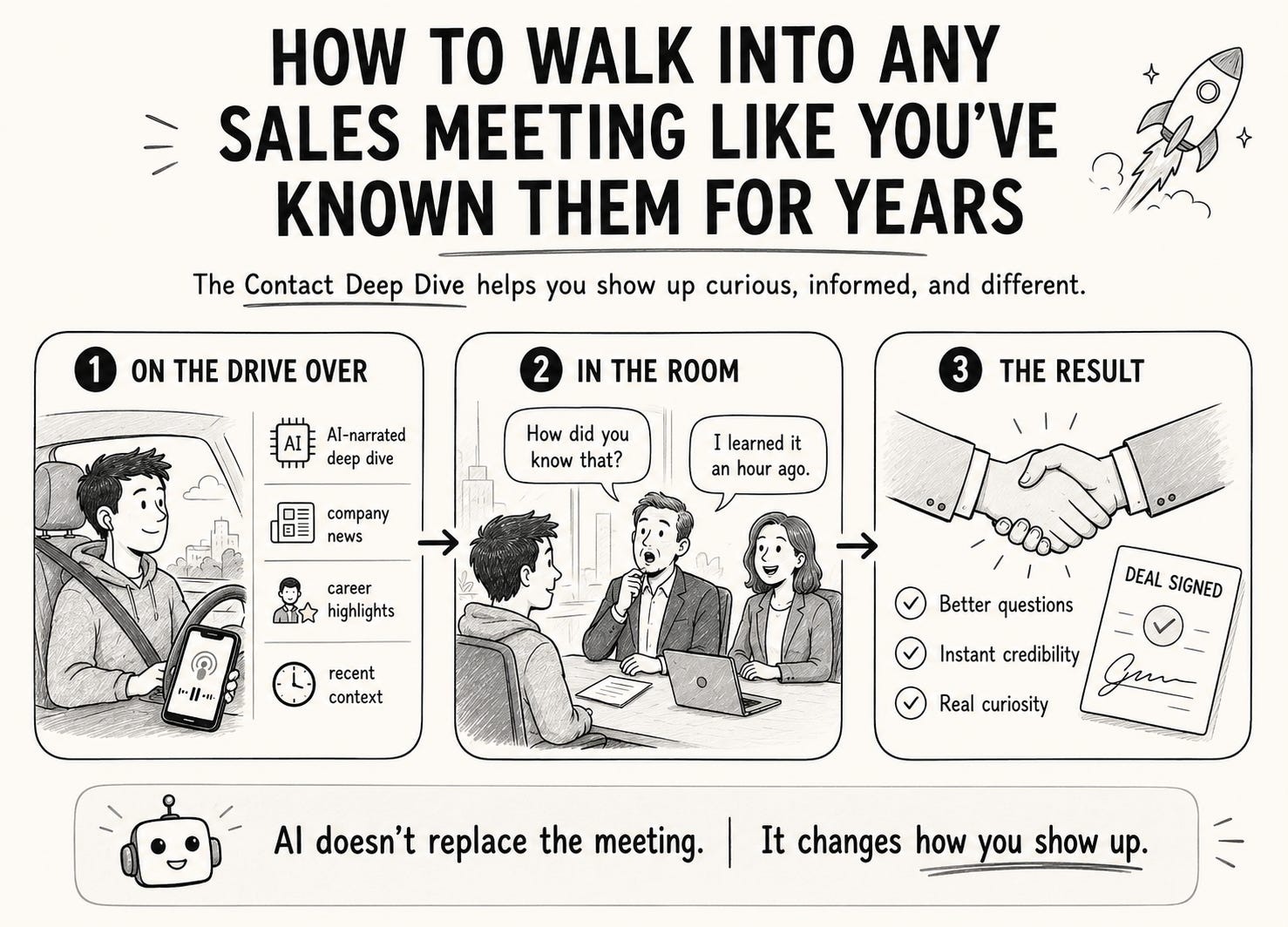
Last month I sat in a board meeting with a CEO I’d never met.
He was talking about an international brand his manufacturing group had just acquired. Multi-million dollar deal. The kind of acquisition you’d expect went through twelve months of due diligence and an army of advisors.
He paused. He turned to me. He said: “You know what, I think I’m going to go with my gut on this next one. I don’t usually but I will.”
I interrupted him. I said: “Actually, you’ve done it before. You bought the international group over a coffee. You were bidding against a Chinese conglomerate. The seller went with you because they didn’t have to sit through six months of due diligence.”
His jaw dropped. He said: “How the #### did you know that?”
I didn’t know that an hour earlier.
I learned it on the drive to his office. Listening to a podcast about him. Generated by Claude.
I got the contract.
This is what AI is actually useful for in sales right now. Not replacing the call. Not writing the proposal. Not closing the deal.
Just letting you walk into a room, genuinely curious about the person across the table.
The thing nobody admits about sales prep
Most “sales prep” is a LinkedIn skim and a glance at the company website on the way to the meeting.
You learn where they worked last. You learn what they posted about three months ago. You learn the official “About Us” version of the company.
You learn nothing that makes the conversation interesting.
Then you walk in, ask three discovery questions, deliver your pitch, and wonder why every meeting feels the same.
You sounded the same. Same buzzwords. Same slides. Same opening lines as the eight other vendors that month.
A senior buyer told me to my face once: “You’re all a joke. I don’t have five minutes for a coffee with someone who can’t tell me something I couldn’t have found myself.”
He was right. Most of us couldn’t.
What you actually want from prep
You don’t want a dossier of facts. You can find those.
You want the interesting part. The part that makes you curious before you walk in. The part that makes you ask a question nobody else has asked them.
The pivot in their career nobody remembers. The acquisition they pulled off on instinct. The community board seat that tells you what they care about outside work. The fact that their company just lost a partnership and is quietly looking for a replacement.
You want context, not coverage.
The Contact Deep Dive skill
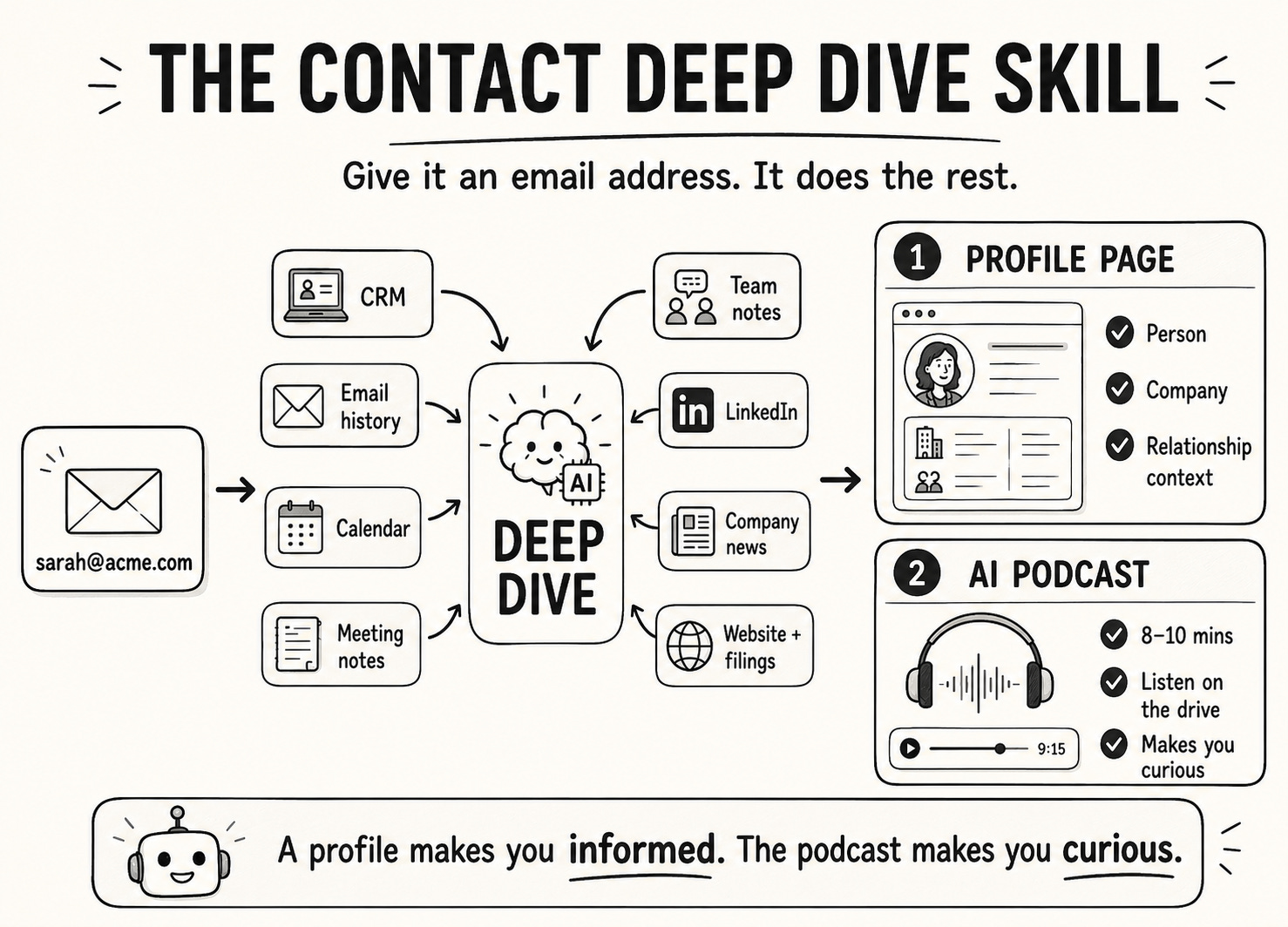
This is a Claude skill. You install it once. You give it an email address. It does the rest.
It pulls from whatever you’ve got connected:
Your CRM (Attio, HubSpot, Salesforce, Pipedrive, whatever you use)
Your email history with this person
Your calendar (past and upcoming meetings)
Your meeting notes app (Granola, Fathom, Fireflies)
Your team’s internal notes about them
Their LinkedIn
News about their company
Public filings if their company is listed
Their company website, services page, leadership team, recent press
It runs all of this in parallel. Takes about three minutes.
Then it produces two things.
A clean profile page. Single HTML file. Editorial design. The person, the company, the relationship, the recent context. Stuff you can scan in 90 seconds before you walk in.
An AI-narrated podcast. Eight to ten minutes. Same content, but as a conversation you listen to on the way to the meeting. This is the part that actually changes how you show up.
A profile makes you informed. The podcast makes you curious.
What you need before you start
Three things. Two are free. One is optional.
A Claude account. The Free plan works for a few runs a week. Pro ($20/month) or Max if you want to run it on every meeting.
Code Execution turned on. This is how Claude actually produces the HTML file rather than just text. Free to enable.
ElevenLabs (optional). This is what makes the podcast sound like a human narrator instead of your browser’s built-in robot. Free tier covers a few podcasts a month.
If you skip ElevenLabs, the skill still runs. You still get the HTML profile. You still get the podcast — just narrated by your browser’s built-in voice. It works. It’s just not the same.
How to install it
Step 1. Turn on Code Execution
Open Claude. Click your name (bottom left) → Settings → Capabilities. Toggle on Code Execution and File Creation.
The skill won’t work without this. Claude needs to actually produce files, not just text.
Step 2. Install the skill
Now go to Customize → Skills. Click “Create a new skill.” Paste the skill file (at the bottom of this post) into the editor. Save.
Step 3. Connect your tools
Go to Connectors in Claude settings. Connect whatever you’ve got — Gmail, Outlook, your CRM, your meeting notes app, Notion. If a connector you use isn’t there yet, just web search alone is enough to get a useful run.
Step 4 (optional). Set up ElevenLabs
This is the part that turns a profile into a podcast you’d actually listen to.
Sign up at elevenlabs.io. Free tier is enough for a handful of podcasts a month. The paid Starter plan ($5/month) gives you much more.
In Claude, go to Connectors and add ElevenLabs. Authenticate with your ElevenLabs account.
Pick a voice you like. The skill defaults to a confident, warm narrator. If you want an Australian voice, use Charlie. If you want British, use George. You can swap voices later by telling Claude.
Done.
If you skip this step, the skill detects no ElevenLabs connector and falls back to Web Speech API. You still get a working player. It’s just less compelling.
How to run it
Type any of these into Claude:
deep dive sarah@acme.com
pull everything on michael@bigcorp.com
who is jonathan@somecompany.com
full profile for ceo@startup.io
The skill triggers automatically the moment you include an email and a research intent. You don’t have to remember a specific command.
In three minutes you have the HTML profile open in your browser and the podcast ready to play.
I usually queue the podcast on my phone before I get in the car.
What to actually use it for
Don’t memorise the profile. That’s not the point.
The point is to walk in interested. The point is to ask a question that surprises them. The point is to make a connection that nobody else made.
Three useful things to look for in the output:
The thing they’re known for that isn’t on their LinkedIn. Usually a press story. A board seat. A talk they gave. A deal they did.
The recent change. They started six months ago. The CEO just left. They acquired someone. They lost a partner. Recent shifts are where the real conversations live.
The shared edge. Someone you both know. A school you both went to. A board you’ve both sat on. A vendor you’ve both used.
That’s it. Three things. Don’t try to weave in twelve facts. You’ll sound like a stalker.
What this isn’t
This is not a tool to replace listening.
It’s a tool to make you ready to listen.
If you walk in with the deep dive and use it as a script, you’ll sound worse than you did before. The whole point is to free your brain from trying to remember basic facts so you can actually be present.
The deep dive does the homework. You do the meeting.
A note on accuracy
The skill will sometimes get things slightly wrong. It’s pulling from web search results, public filings, and your CRM. If something is misreported online, the skill will report it the same way.
I learned this the hard way. I once walked into a meeting and confidently referenced a board seat the contact had stepped off six months earlier. He corrected me, politely. The meeting never quite recovered.
So when you walk in and want to reference something specific, check the source first. The deep dive shows you where each fact came from. One click to verify.
I won’t make that mistake again.
Get the skill
The generic skill file is below.
Copy it. Paste it into Claude as a new skill. Connect your tools. Run it on someone you’re meeting tomorrow.
Then reply to this post and tell me what surprised you in the output. I read every reply.
The skill file
Copy everything in the block below into Claude as a new skill (Customize → Skills → Create a new skill → paste).
---
name: contact-deep-dive
description: "Performs a comprehensive contact research workflow when given an email address and a trigger phrase like \"deep dive\", \"pull everything on\", \"full profile for\", \"research this contact\", or \"who is\". Searches whatever CRM, email, calendar, meeting notes, billing and web sources the user has connected, then synthesises everything into a single HTML profile and an AI-narrated podcast summary. ALWAYS use this skill the moment the user provides an email address alongside a research intent — do not wait for explicit instruction. Required trigger: an email address must be present. Without an email, do not trigger."
---

# Contact Deep Dive Skill

Given an email address and a research trigger, conduct a multi-source investigation across whatever connectors the user has available, and produce a polished HTML contact profile plus an AI-narrated podcast.

This skill is intentionally tool-agnostic. It uses whatever you have. If a connector is missing, skip that source silently and use what you can. The output should feel complete, not list what's missing.

**Time budget: aim to complete the full run in under 3 minutes.**

---

## Step 1: Parse Input

Extract:

- Email address from the message
- Domain (e.g. `microsfot.com.au` → company domain)
- Name hint if present (e.g. "Michael" in "deep dive michael@...")

If no email is present, do not run this skill. Ask the user for one.

---

## Step 2: Detect Available Connectors

Check what the user has connected. Run lookups only on sources that are available. Skip the rest silently.

Typical sources, grouped by purpose:

- **CRM**: Attio, HubSpot, Salesforce, Pipedrive, Close, Copper
- **Email**: Gmail, Outlook, Microsoft 365
- **Calendar**: Google Calendar, Outlook Calendar
- **Meeting notes**: Granola, Fathom, Fireflies, Otter, Gong
- **Knowledge base**: Notion, Confluence, Google Drive
- **Billing**: Stripe, Chargebee
- **Web research**: web_search and web_fetch (always available)
- **Audio narration**: ElevenLabs (optional — falls back to Web Speech API if absent)

**Minimum viable run:** if only web_search is available, the skill still produces a useful HTML profile + podcast. Web research alone covers the company, public filings, news, and LinkedIn (via search snippets).

---

## Step 3: Parallel Data Gathering

Run all available lookups simultaneously.

### CRM
- Search for person and company records matching the email
- Pull notes, comment threads, linked deals/opportunities
- Capture last interaction date

### Email
Build a timeline:
- Search inbox + sent for `from:<email> OR to:<email>`, last 20 threads
- For each thread: date, subject, direction, 1–2 sentence summary
- For the 3–5 most recent threads, fetch full body
- Group by thread

### Calendar
- Past and upcoming events with the contact
- Title, date, attendees, location/link
- Note recurring patterns

### Meeting Notes
- Search for any meetings with the contact
- Capture: title, date, attendees, AI summary, action items, source citation links

### Knowledge Base
- Search for documents mentioning the contact's name or company
- Capture title, last-modified date, snippet

### Billing / Payments
If a billing connector is configured:
- Find customer by email
- Fetch in parallel: profile, charge history, subscriptions, invoices
- Calculate lifetime value (sum of succeeded charges, divide cents by 100 for display)
- Show status pills for subscription states

### Web Research — Person
Run via web_search:
- `"<Full Name>" "<Company>" LinkedIn`
- `"<Full Name>" "<Company>" director founder CEO`
- `"<Full Name>" "<Company>" news`

LinkedIn often blocks direct fetching — use search snippets instead.

### Web Research — Company Deep Dive
Run 5–8 searches covering:

**What they do:**
- `"<Company>" services OR solutions OR products`
- `site:<domain>` — fetch homepage, about, services

**Recent news:**
- `"<Company>" news <current year>`
- `"<Company>" announcement OR launch OR partnership <current year>`
- `"<Company>" acquisition OR merger OR funding`

**Public filings (if listed):**
- `"<Company>" ASX OR NYSE OR NASDAQ OR LSE`
- `"<Company>" annual report OR earnings`

**Market position:**
- `"<Company>" competitors OR "market share"`
- `"<Company>" review OR award`

**Leadership:**
- `"<Company>" CEO OR founder OR leadership team`

---

## Step 4: Synthesise

Organise findings into these sections. Use only what you found. Omit any section with no data.

**Person:**
- Personal Details (CRM, email signatures, LinkedIn)
- Career / Role (LinkedIn, web)
- Interaction History (CRM, email, calendar)
- Meeting Notes
- In Their Own Words (quotes from LinkedIn, testimonials)
- Social Presence
- Notes & CRM Activity
- Billing & Payments
- Recent Emails

**Company:**
- Company Overview
- What They Do
- Who They Serve
- Products & Technology
- Leadership Team
- Recent News
- Partnerships & Acquisitions
- Financial / Investor (if public)
- Notable Clients
- Market Position
- Awards & Recognition

---

## Step 5: Generate the HTML Profile

Produce a single self-contained HTML file with embedded CSS. Default aesthetic: clean, editorial light theme. Restrained, professional. Generous whitespace, light font weights, feels like a premium magazine.

### Colour palette (CSS variables)

```css
:root {
  --bg: #FAFAFA;
  --surface: #FFFFFF;
  --surface-elevated: #F5F5F5;
  --text-100: rgba(5,5,5, 1.0);
  --text-80:  rgba(5,5,5, 0.8);
  --text-60:  rgba(5,5,5, 0.55);
  --text-40:  rgba(5,5,5, 0.35);
  --text-25:  rgba(5,5,5, 0.2);
  --text-12:  rgba(5,5,5, 0.1);
  --accent-blue:  #5B8DEF;
  --accent-green: #4ADE80;
  --accent-amber: #FBBF24;
  --accent-red:   #F87171;
  --font-sans: 'Inter', -apple-system, sans-serif;
  --font-mono: 'JetBrains Mono', 'Menlo', monospace;
}
```

### Typography
- Display headings: Inter 300, letter-spacing -2px to -4px
- Section titles: Inter 300, letter-spacing -1px
- Body: Inter 300, 18px, line-height 1.7, colour `--text-60`
- Labels: JetBrains Mono 400, 11px, uppercase, letter-spacing 2px
- Data values: JetBrains Mono 300

### Layout
- CSS grid, max-width 1100px, responsive
- Border-radius: 0 on buttons, tags, chips. 8px on quote/callout blocks.
- Spacing: 80px vertical between sections, 48px between cards
- Cards: white background, 1px border in `--text-12`
- No shadows heavier than `0 1px 3px rgba(0,0,0,0.04)`. No gradients.

### Required sections

**Header**
- Person's name in display heading
- Role + Company + Location subtitle
- Contact chips (email, phone, LinkedIn)
- Source badges (which sources contributed) — small monospace tags

**Person section** (2-column card grid)
- Personal Details
- Interaction History
- Notable Quote (full-width, left-border accent — only if found)
- Career Timeline
- Social Presence

**Company section** (full-width divider before)
- Company Overview (2-column inner grid)
- What They Do (2–4 paragraphs)
- Products & Services
- Who They Serve
- Recent News (chronological, last 12 months)
- Leadership Team
- Financial (only if public)
- Partnerships & Acquisitions
- Market Position

**Relationship section**
- Billing / Payments (blue accent, status pills, invoice links)
- Notes & CRM Activity
- Meeting Notes (green accent)
- Calendar Events
- Recent Emails (full-width: date, direction, subject, 1-line summary per row)

**Footer**
- "Profile compiled [date]"
- List of sources that contributed data

### Data handling rules
- Missing field → omit the row (no "N/A")
- Empty section → omit the whole card
- Phone → `<a href="tel:...">`, Email → `<a href="mailto:...">`
- Linked CRM records → add a "View in [CRM] ↗" button

### Save and deliver
Save the HTML to `/mnt/user-data/outputs/<firstname>_<lastname>_profile.html` (use email local-part if name unknown). Present the file with a 2–3 sentence summary of headline findings. Proceed immediately to Step 6.

---

## Step 6: Generate Audio Podcast

Always follow the HTML with a narrated podcast summary.

### Script
Write a 900–1100 word script broken into 12–18 segments covering:

1. Introduction — name, role, company
2. Who they are — background, experience, location
3. Career arc — prior roles, notable achievements
4. Recent roles & community involvement
5. Company overview — what, when, where, size
6. What the company does — like a pitch
7. Who they serve — customers, industries
8. Products & technology
9. Recent news — last 12 months
10. Leadership & team
11. Financial snapshot (if public)
12. Your history together — relationship context
13. CRM relationship
14. Billing summary (if applicable)
15. Recent emails — what the last 3–5 threads suggest
16. Meeting notes — recurring themes, action items
17. Calendar & engagement depth
18. Summary — the person, the company, the relationship, key actions

**Script rules:**
- Professional podcast narrator voice — conversational but informative
- Spell out numbers for TTS ("forty-five million" not "$45M")
- Reference specific dates, amounts, names
- Company section should be substantial (300+ words)
- Skip empty chapters silently

### Audio generation

**If ElevenLabs is connected:**
- Use the highest-quality multilingual model
- Default voice: confident, warm narrator. Match region (Australian for AU, British for UK)
- Output: MP3
- If the script exceeds the TTS character limit, split at segment boundaries and concatenate

**If ElevenLabs is NOT connected:**
- Skip MP3 generation
- Build the player to use the browser's Web Speech API for narration
- Note to the user: "Podcast will use browser narration. For higher-quality voice, connect ElevenLabs in Claude settings."

### Interactive player
Build a self-contained React `.jsx` file that acts as either:
- An MP3 player (if ElevenLabs produced audio), or
- A Web Speech API player (fallback)

**Player UI matches the HTML profile aesthetic** — same palette, same typography.

Components: header with title + contact name; waveform visualiser (60 bars); clickable progress bar with monospace timestamps; transport (prev chapter / play-pause / next chapter); speed selector (0.75x / 1x / 1.25x / 1.5x); chapter list with active highlight; collapsible transcript.

**Constraints:**
- No localStorage or sessionStorage — React state only
- Import only from `react` (hooks)
- All segment data embedded in the component

### Save and deliver
- Save MP3 (if generated) to `/mnt/user-data/outputs/<firstname>_<lastname>_podcast.mp3`
- Save React player to `/mnt/user-data/outputs/<firstname>_<lastname>_podcast.jsx`
- Present all files alongside the HTML profile
- Note: "Here's a podcast summary — queue it up before the meeting."

---

## Notes & Tips

- **Connector silence:** If a source returns nothing, don't mention it. Output should feel complete.
- **Name resolution:** If the CRM returns a full name, use it. Otherwise parse from email local-part.
- **Company name:** Prefer the CRM company record. Fall back to the domain root.
- **Multiple CRM matches:** Pick the exact email match.
- **LinkedIn:** Direct fetching usually blocked — use search snippets.
- **Time-sensitive data:** Anchor news and financial queries to the current year.
- **Privacy:** This skill is for sales/account research the user is permitted to do. Don't surface information from sources the user shouldn't have access to.
- **Minimum viable run:** Even with only web_search available, produce a useful profile. Don't refuse to run.
When you connect the podcast file to your phone, how do you send it across? There are obvious but clunky ways, do you have a more seemless way of doing it if you're doing many of these. Also, would Sonnet or Haiku be enough for this?